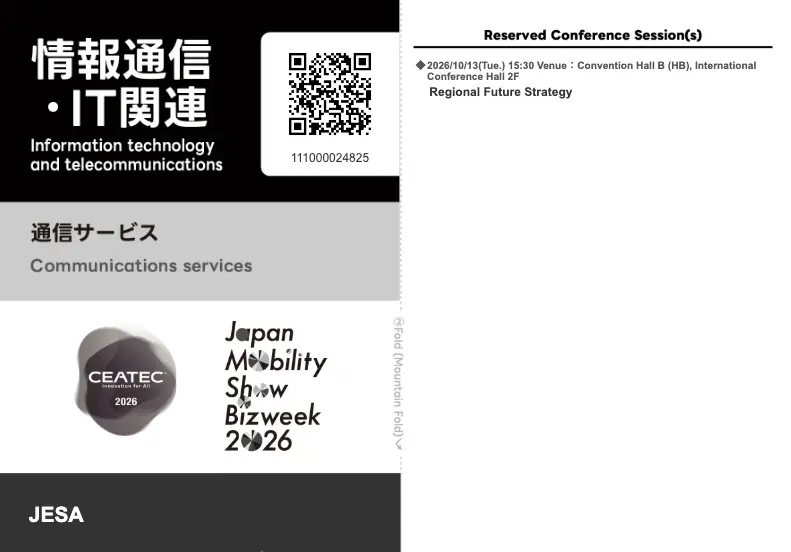
This page explains how to reserve seats for conference sessions.
Step 1Getting Started
-
1-1.Session reservations require this year’s visitor pre-registration.
Registration is required each year. If you have not completed your registration for this year, please register first on the Pre-Registration Site.
-
1-2.Once your pre-registration is complete, log in to the CEATEC official website.
Log in using the “Login” button at the top right of the page (in the header). Once logged in, you can also use Visitor My Page.
For details on what you can do there, see the My Page Feature Guide.
Step 2Reserving a Session
Reservations can be made from the following pages:
- Conference Session List
- Individual session detail pages
* Reservations cannot be made directly from the Timetable. Please go to the detail page of the session you want, then make your reservation.
* Online Sessions do not require a reservation. Complete your visitor pre-registration and log in to view them.
-
2-1.Reserving from the Conference Session List
Open the Conference Session List page.
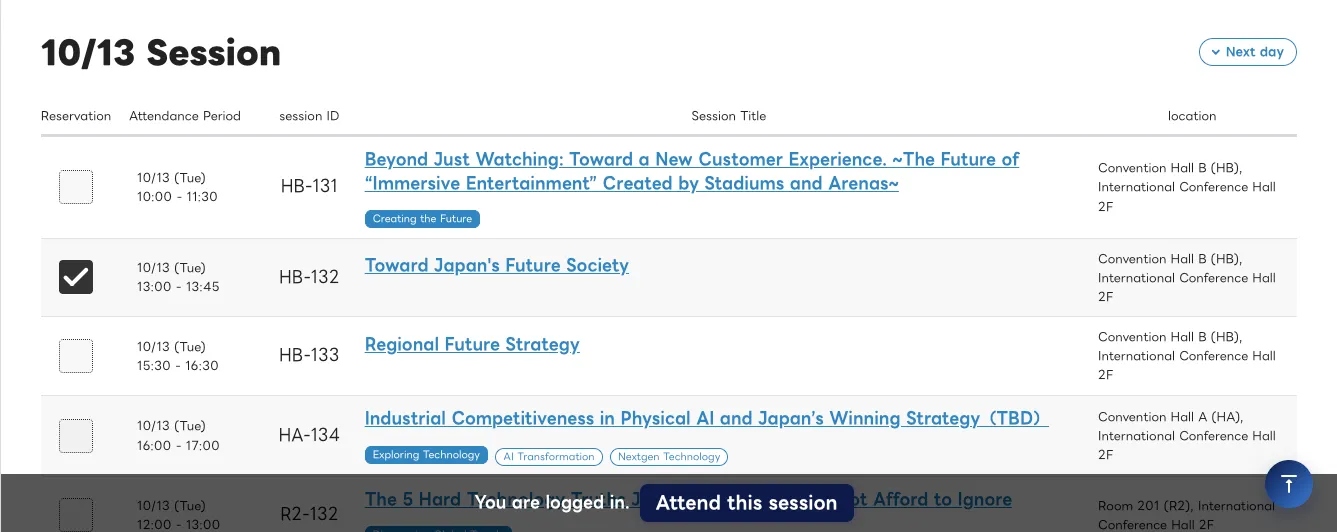
First, check that the button at the bottom of the screen reads “Attend this session.”
If you are not logged in, it will read “Login” — use that button to log in.
Next, select the reservation checkbox on the left side of the screen, then click the “Attend this session” button at the bottom of the screen.
A confirmation screen will appear. Be sure to click the “Confirm Reservation” button at the bottom of the page.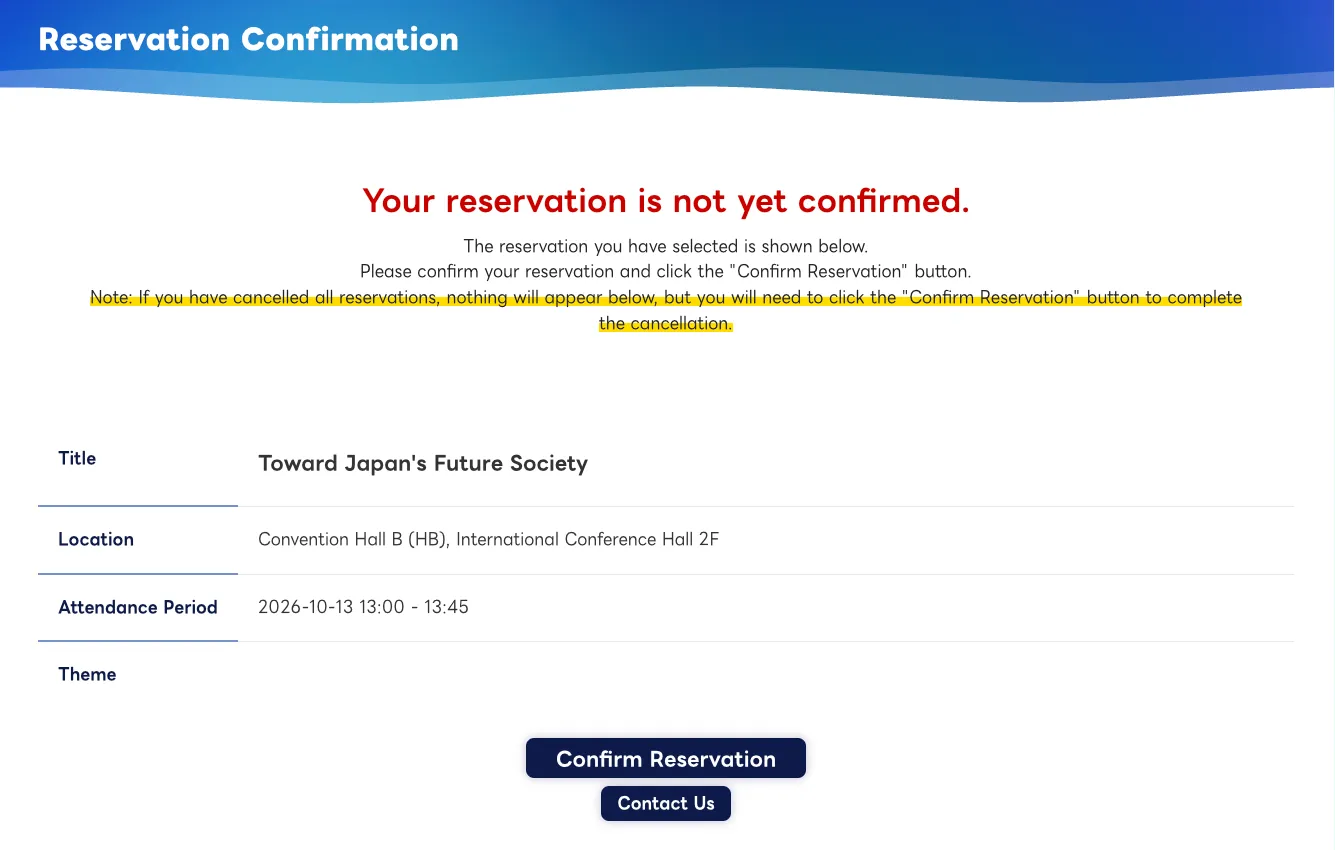
When the screen below appears, your reservation is complete.
An Admission Pass listing your reserved sessions will be sent to your registered email address.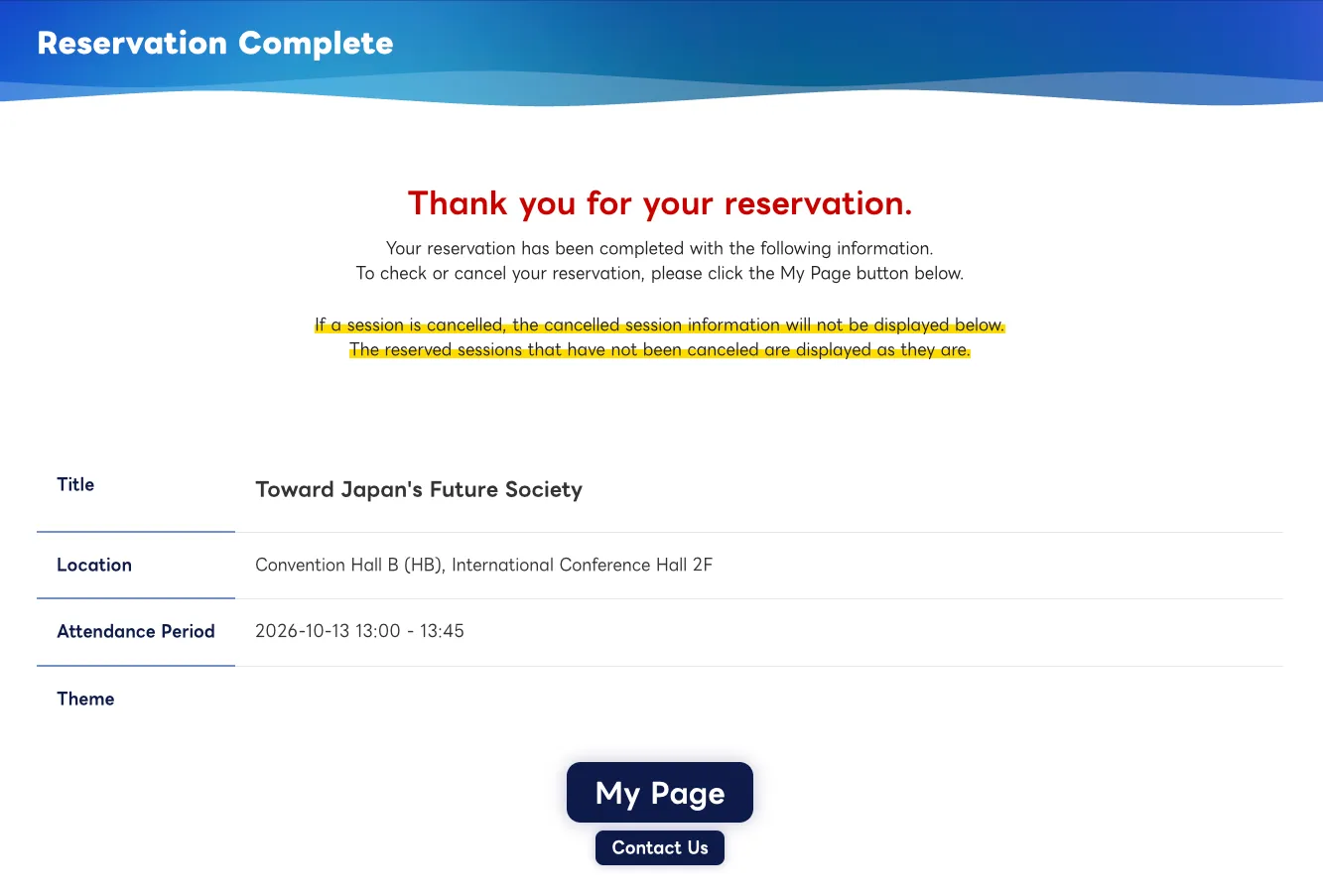
-
2-2.Reserving from a Session Detail Page
Open the detail page of the session you want to reserve (you can get there from the Conference Session List).
Click the “Attend this session” button at the bottom of the screen.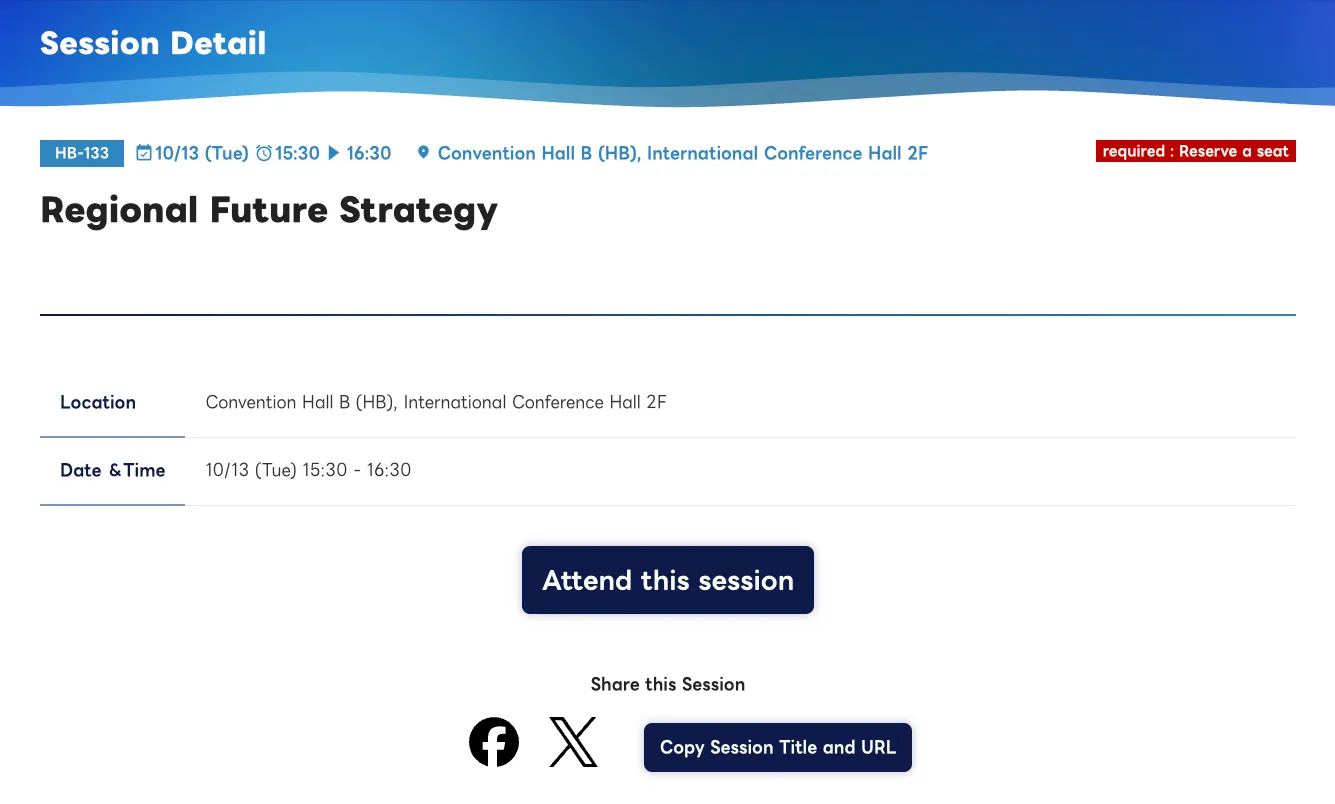
A confirmation screen will appear. Be sure to click the “Confirm Reservation” button at the bottom of the page.
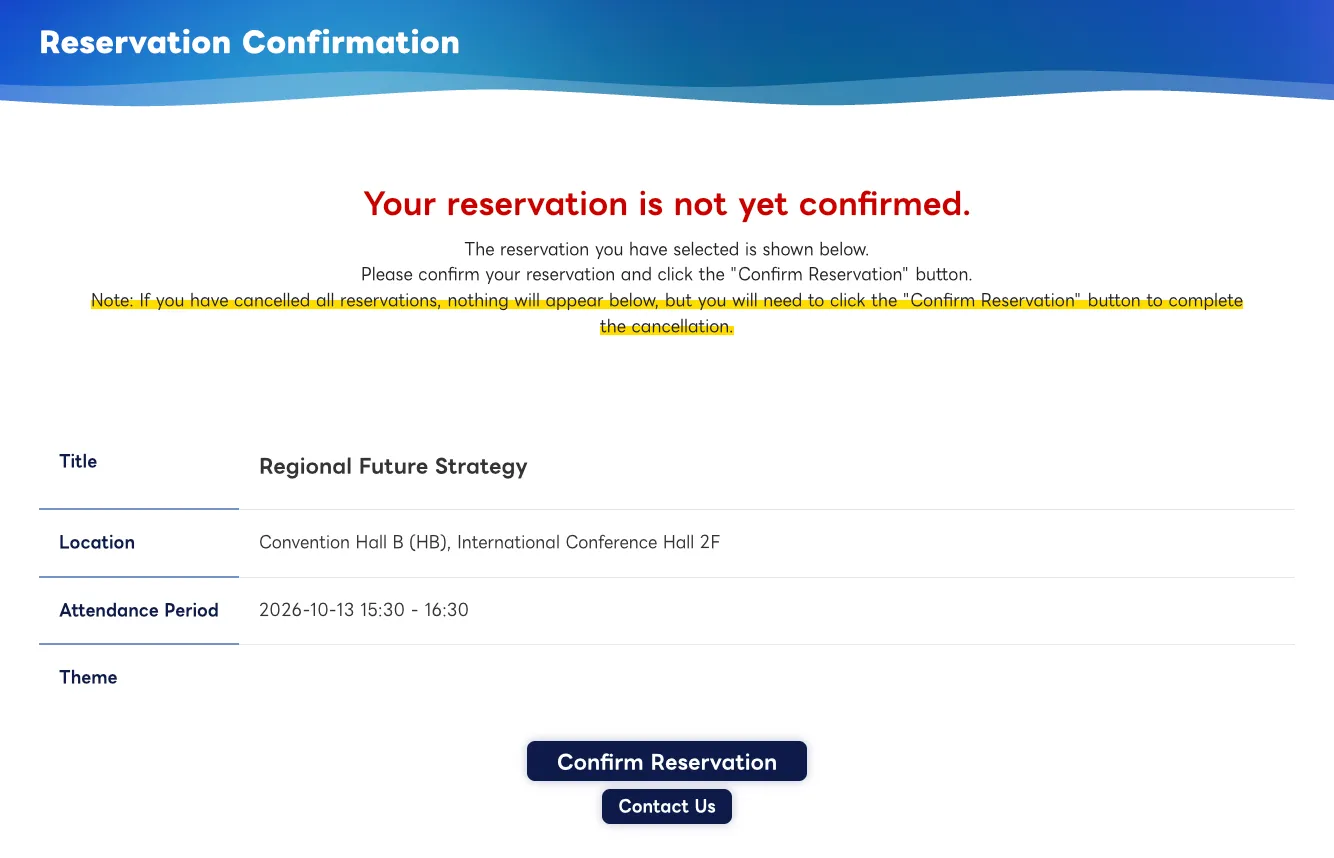
When the screen below appears, your reservation is complete.
An Admission Pass listing your reserved sessions will be sent to your registered email address.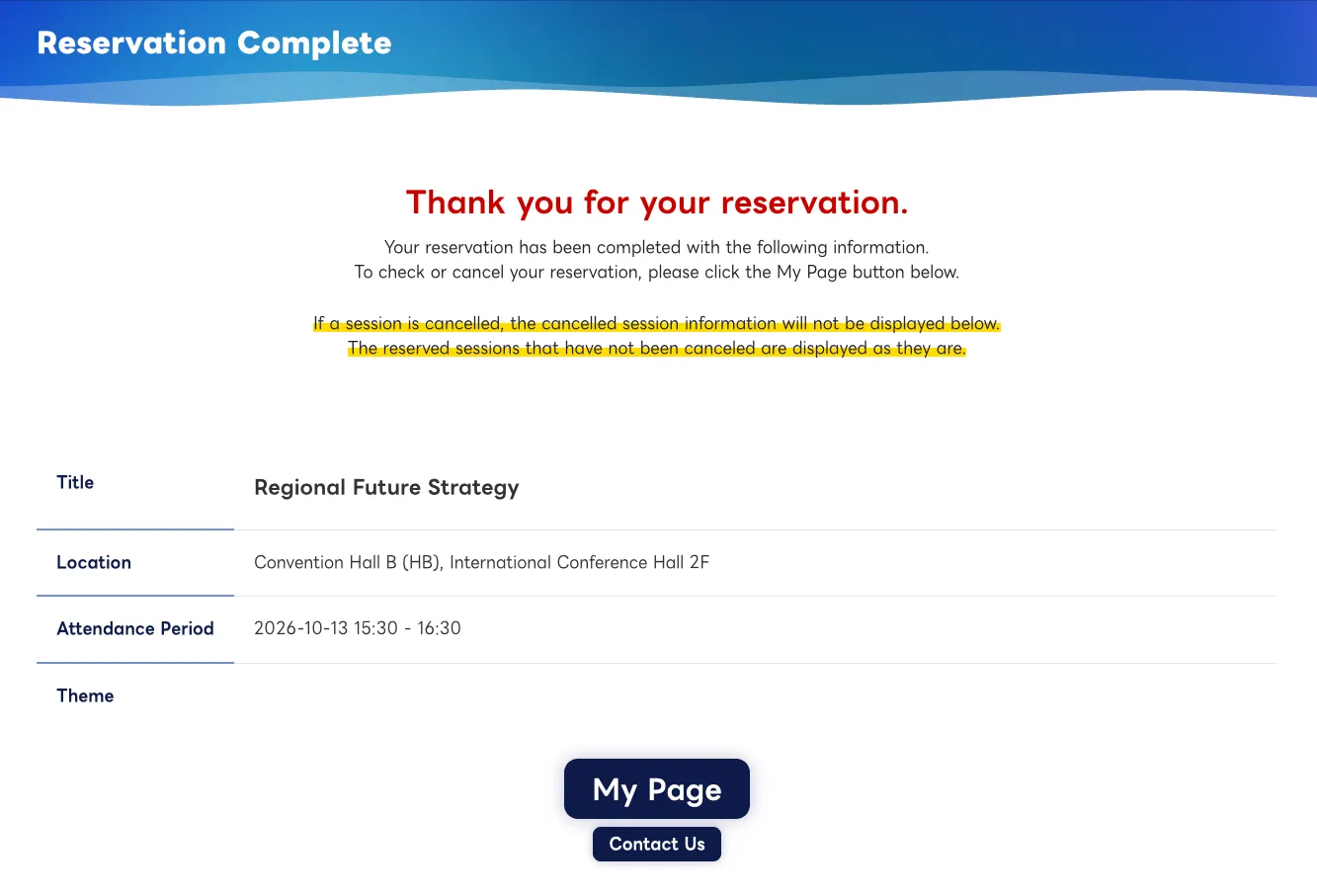
Step 3Cancelling a Reservation
Reservations can be cancelled from My Page on the Pre-Registration Site, or from the Conference Session List page.
This page explains how to cancel from My Page on the Pre-Registration Site.
Go to My Page on the Pre-Registration Site and click “List of reserved conferences/sessions” in the “Registered Events” table.
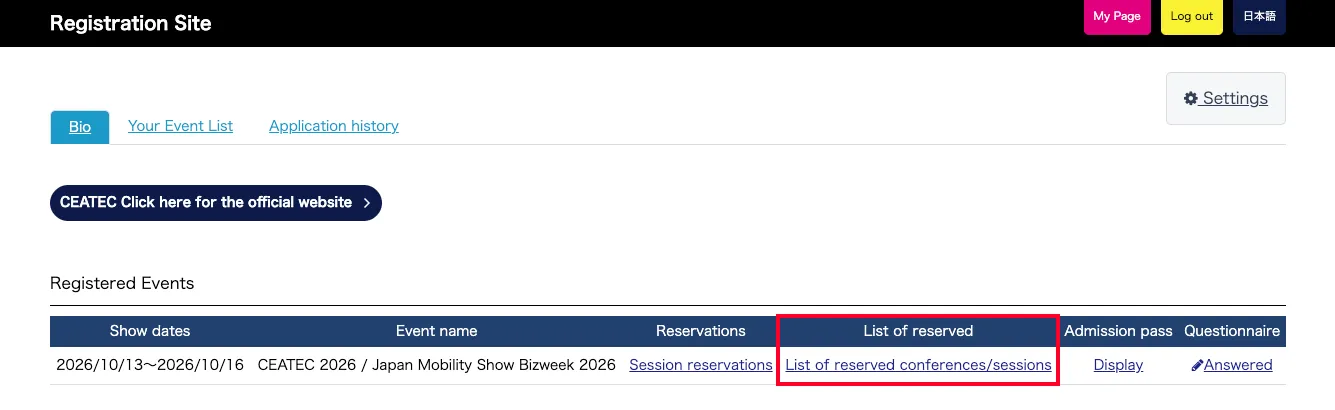
Click the “Cancel Reservation” button for the session you want to cancel.
A confirmation dialog will appear at the top of your browser. Check the details, then click “OK” to complete the cancellation.
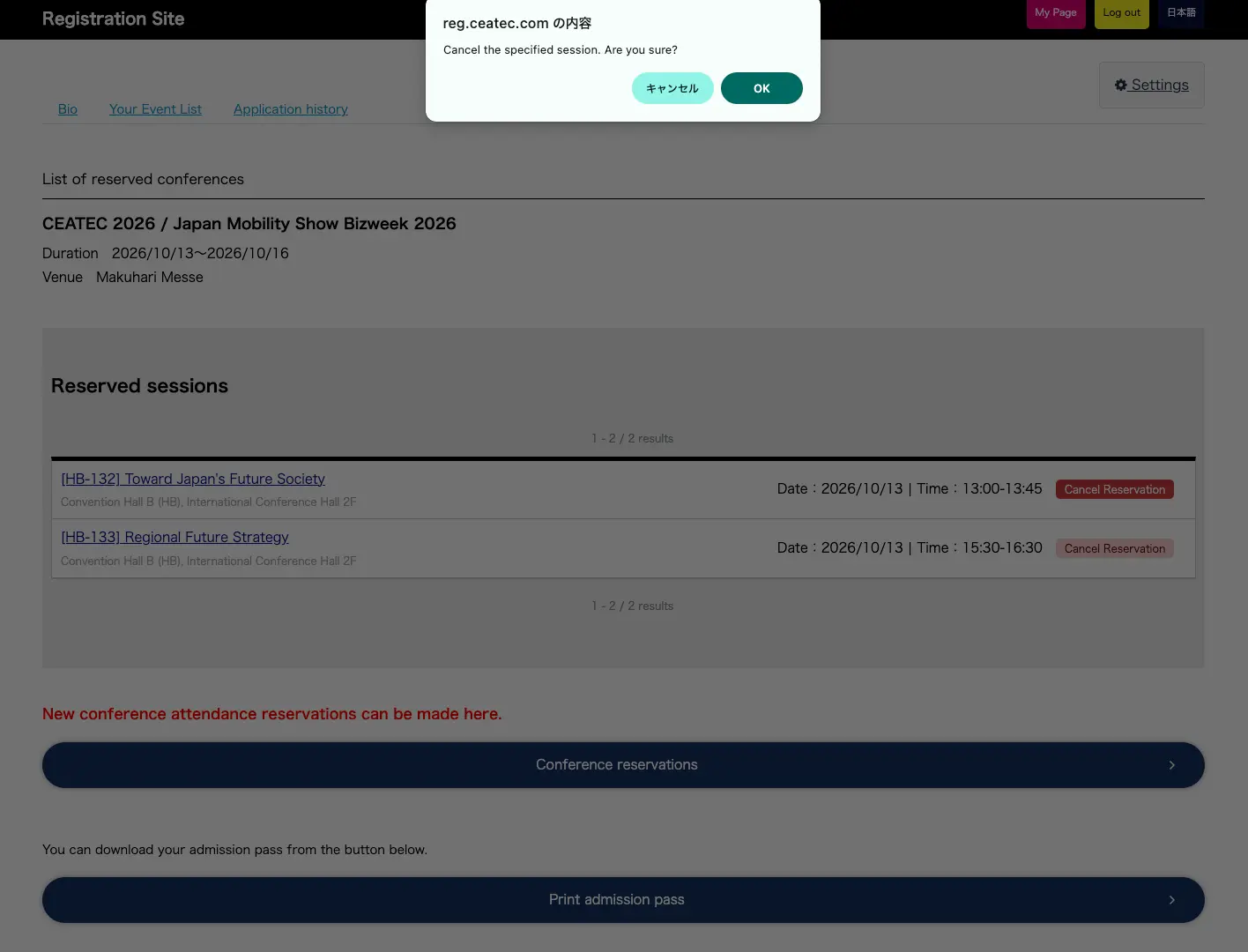
When the session disappears from the list, your cancellation is complete.
An Admission Pass with the cancelled session removed will be sent to your registered email address.
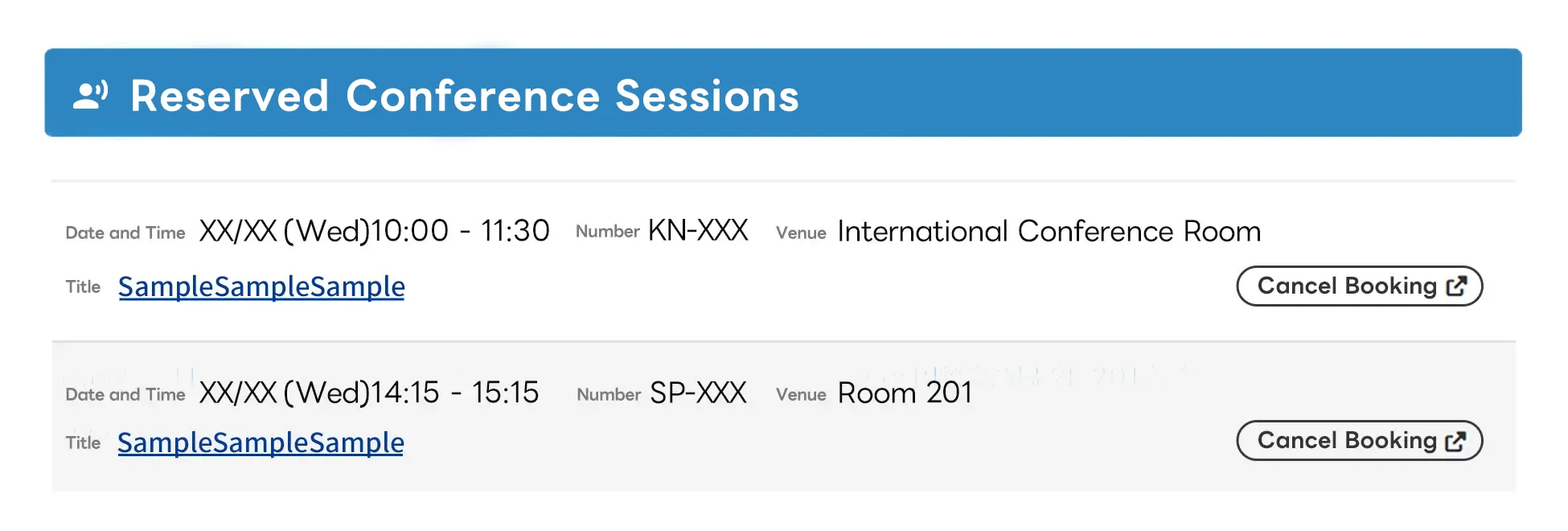
You can also cancel from “Reserved Conference Sessions” on Visitor My Page of the CEATEC official website, using the “Cancel Reservation” button.
Step 4Attending Sessions at Makuhari Messe
You will need an Admission Pass listing your reserved sessions. Please print it at A4 size and bring it with you.
* Black-and-white printing is also fine.
* If you plan to collect your Admission Pass at the venue, please see the Visitor Pre-Registration page.